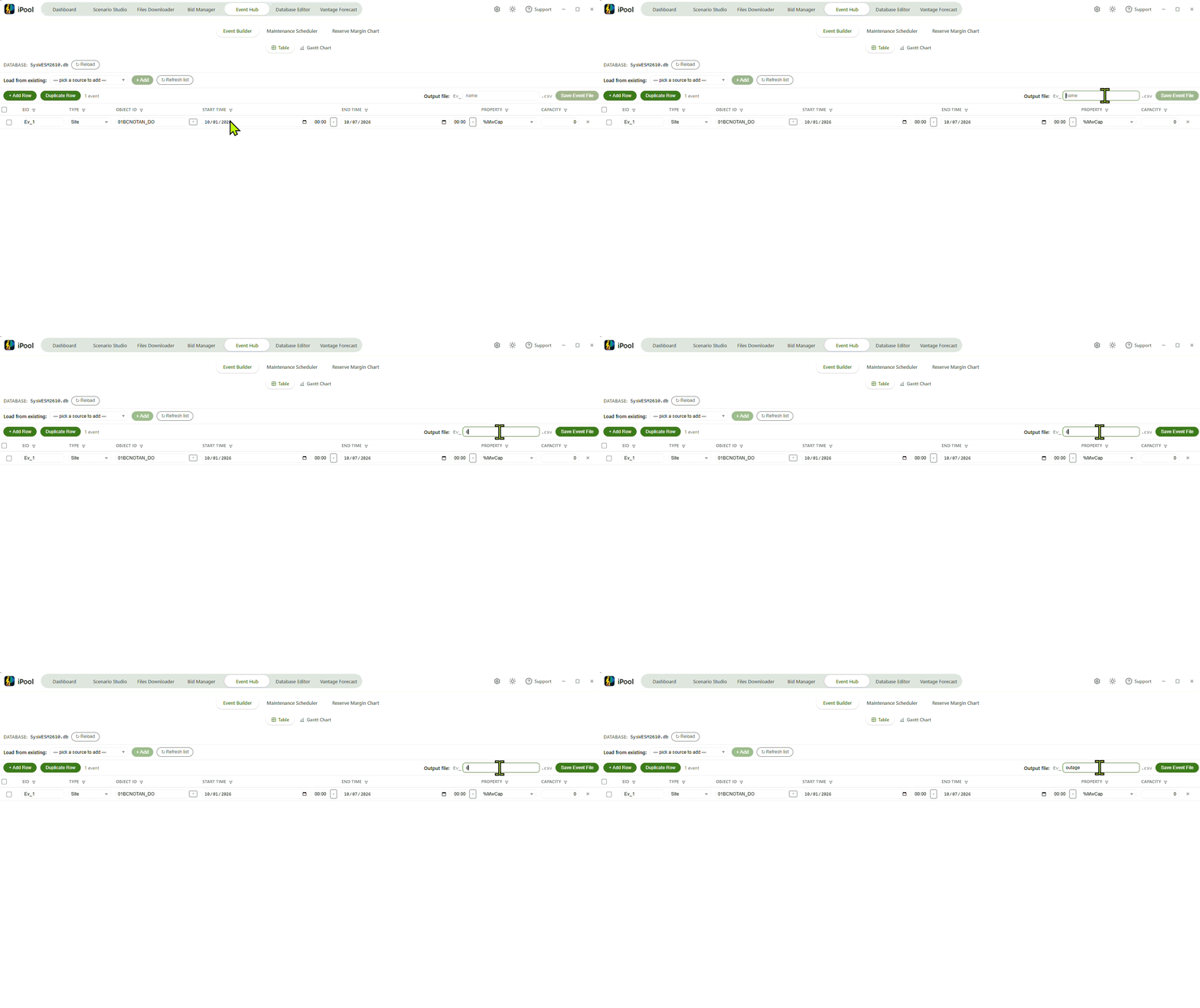
Interface and Navigation
This page walks you through the Event Builder Table in three phases: loading a database source, adding and editing event rows, and saving the finished event file. Each phase below is one tab of the walkthrough.
- Phase 1: Load your database and pick a source
- Phase 2: Add and edit event rows
- Phase 3: Save your event file
Confirm the catalog is loaded, then optionally seed rows from an event file that already lives in the working environment.
Database Status
Confirm your database is loaded before doing anything else. The
Database: label at the top of the Event Builder shows the basename
of the catalog currently loaded; if it reads No database loaded,
no dropdowns will populate. While the catalog is being read the label
reads Loading catalog….
Use ↻ Reload to re-read the catalog from disk after switching working environments or after another tool updates it. Reload is disabled while the catalog is loading and while no database is configured. If the reload surfaces problems — a missing file, a parse error, or a warning about unknown regions — a brief banner appears beneath the row.
Seed rows from an existing event file
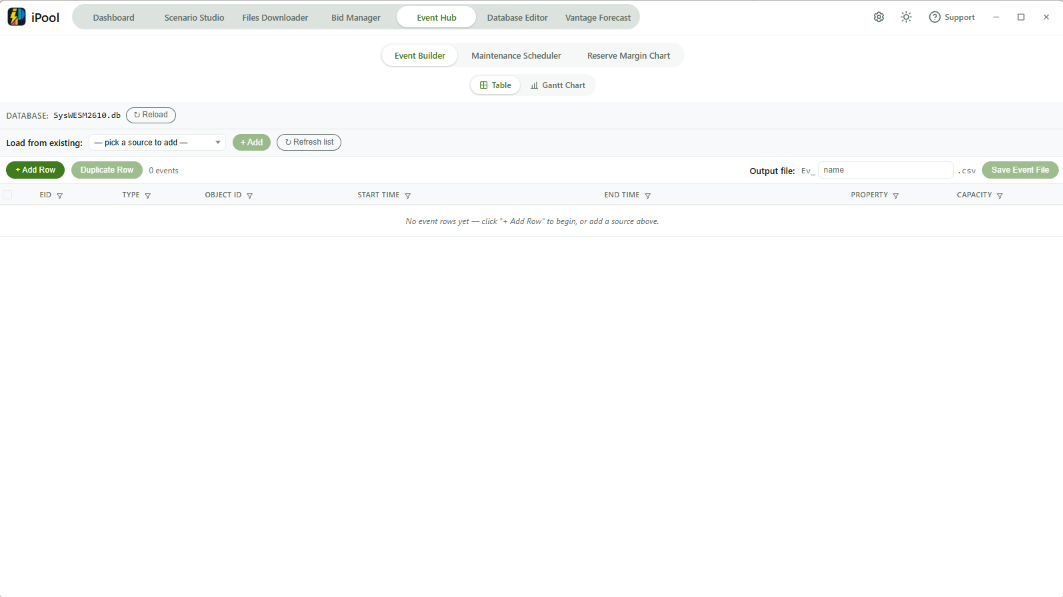
To pre-populate rows from a file that already lives in DirEvt, pick it from Load from existing: and press + Add.
- Picker placeholder
— pick a source to add —; dropdown. Ev*.csvfiles in DirEvt are shown as options.- Dedup rule: byte-identical incoming rows REPLACE the existing copy (keep-last); rows that differ in any field are all kept.
- ↻ Refresh list re-scans DirEvt without leaving the tab.
- Each added source appears below the picker, showing its name, a loading indicator while reading, a warning icon if there are problems, and a × button to remove it.
- The chip's
×retracts the rows that source contributed unless another added source contributes the same row or you have edited the row since it was loaded.
With the table primed you can move on to Phase 2 to edit rows.
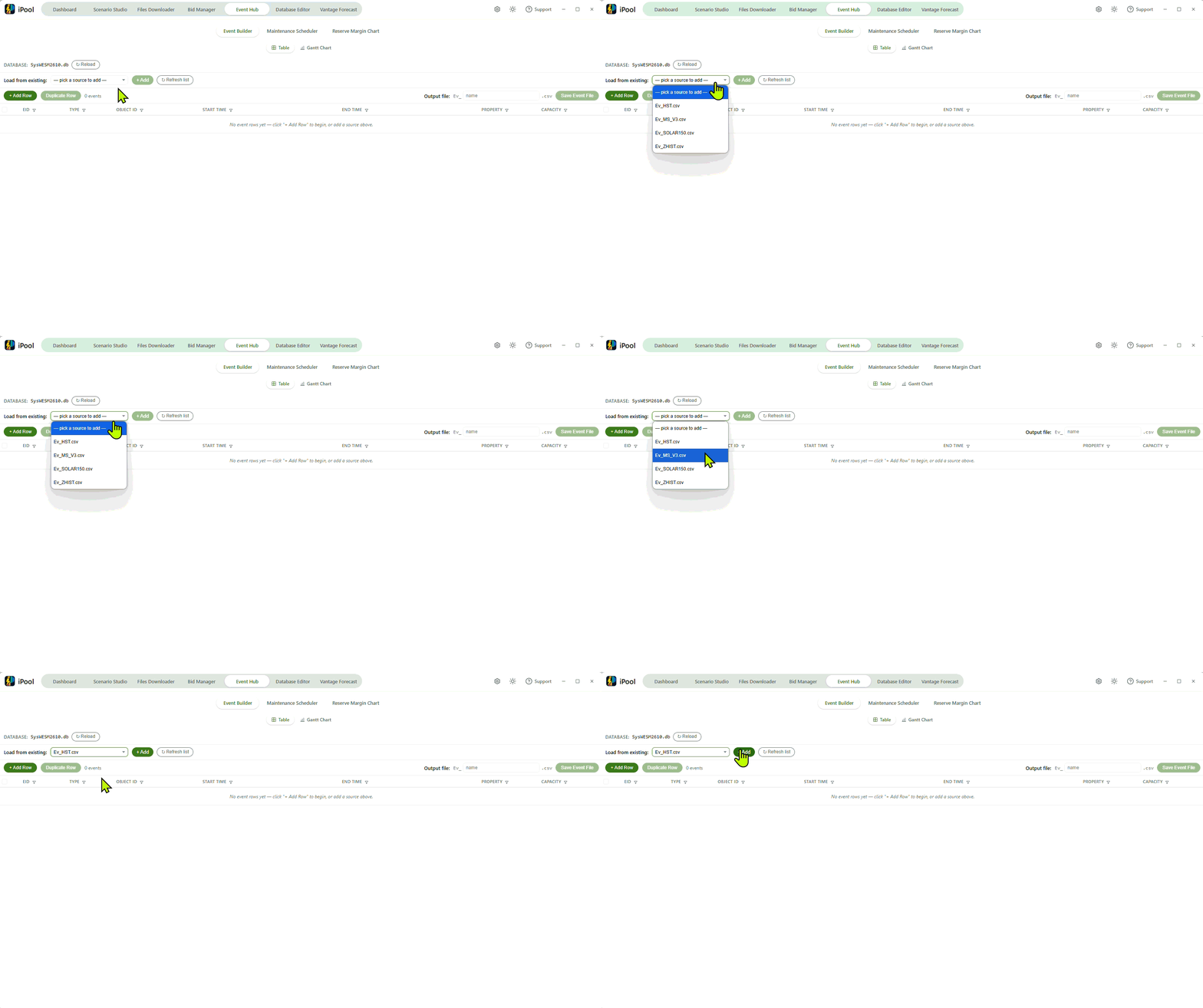
Fill in new event rows and use the toolbar for bulk actions on the table.
Add rows and fill columns
Each event row spans nine columns. Press + Add Row to start a blank one and fill left-to-right. Type must be picked before Object ID and Property unlock.
- Row-select checkbox — ticks the row for multi-row actions; the header checkbox selects or clears every row and shows an indeterminate mark when only some rows are selected.
- EID — text input for the event identifier, placeholder
Ev_7_. - Type — dropdown of the event types the loaded catalog knows about.
- Object ID — typeable combobox; disabled until Type is picked; options are filtered down to those valid for the picked type.
- Start Time — calendar date picker plus a time-of-day picker
that snaps to the 5-minute grid across the day (288 slots,
00:00to23:55). - End Time — the same composite as Start Time.
- Property — dropdown filtered by Type; disabled until Type is picked.
- Capacity — decimal input for the event's capacity value,
placeholder
0. - Row remove
×— deletes just this row from the table.
When the editor is empty the table shows the message
No event rows yet — click "+ Add Row" to begin, or add a source above.
Use the row toolbar
+ Add Row is the primary action; it appends a blank row to the end of the table so you can fill in the nine fields from scratch.
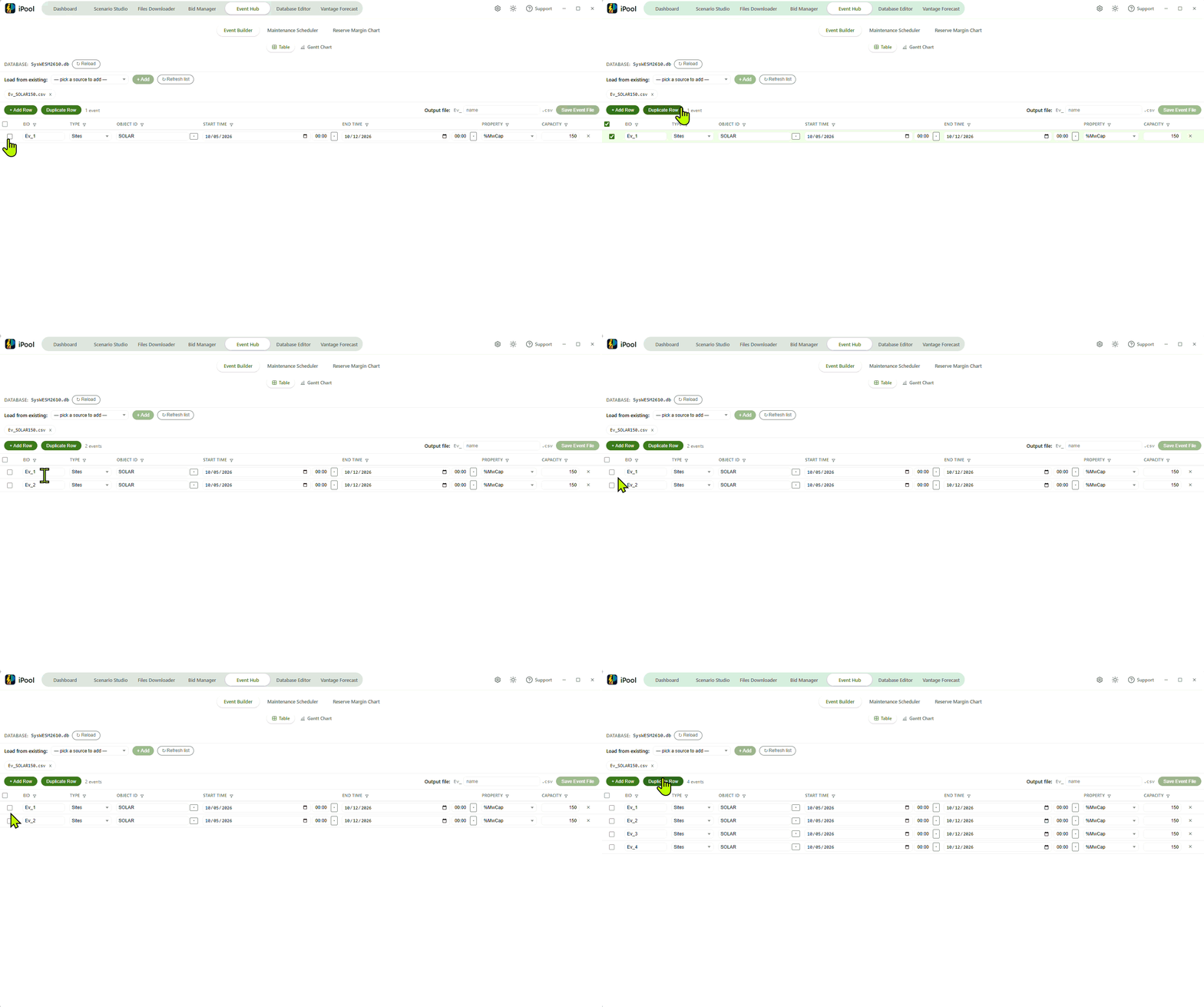
Duplicate Row copies existing rows: with no rows selected it duplicates the last row in the table; with one or more rows selected it duplicates each of those rows field-by-field and appends the copies to the end. The button is disabled when the table is empty.
The header select-all checkbox in the row-select column ticks or clears every visible row at once and displays an indeterminate mark whenever some rows are selected and others are not.
The toolbar also shows an event count label so you can see the row
total at a glance. When no column filter is active it reads
N events (or 1 event when there is only one row). When a column
filter is active and narrows the table it reads N of M events,
where N is the filtered count and M is the total in the editor.
The label updates automatically after each row add, remove, or
filter change.
Filter rows
Each column header contains a filter icon (a small funnel). Clicking the filter icon opens a filter for that column; the filter narrows the displayed rows to those matching the entered value. The filter icon is highlighted when a filter is active on that column.
While one or more column filters are active, the event count label in
the toolbar reads N of M events (N matching rows of M total).
When active filters narrow the table to zero rows, the table shows the
message No events match the current filters.
The Clear all filters button in the toolbar removes all active column filters at once; the button is disabled when no column filter is active.
Write the finished event file into the working environment's event directory.
Save the event file
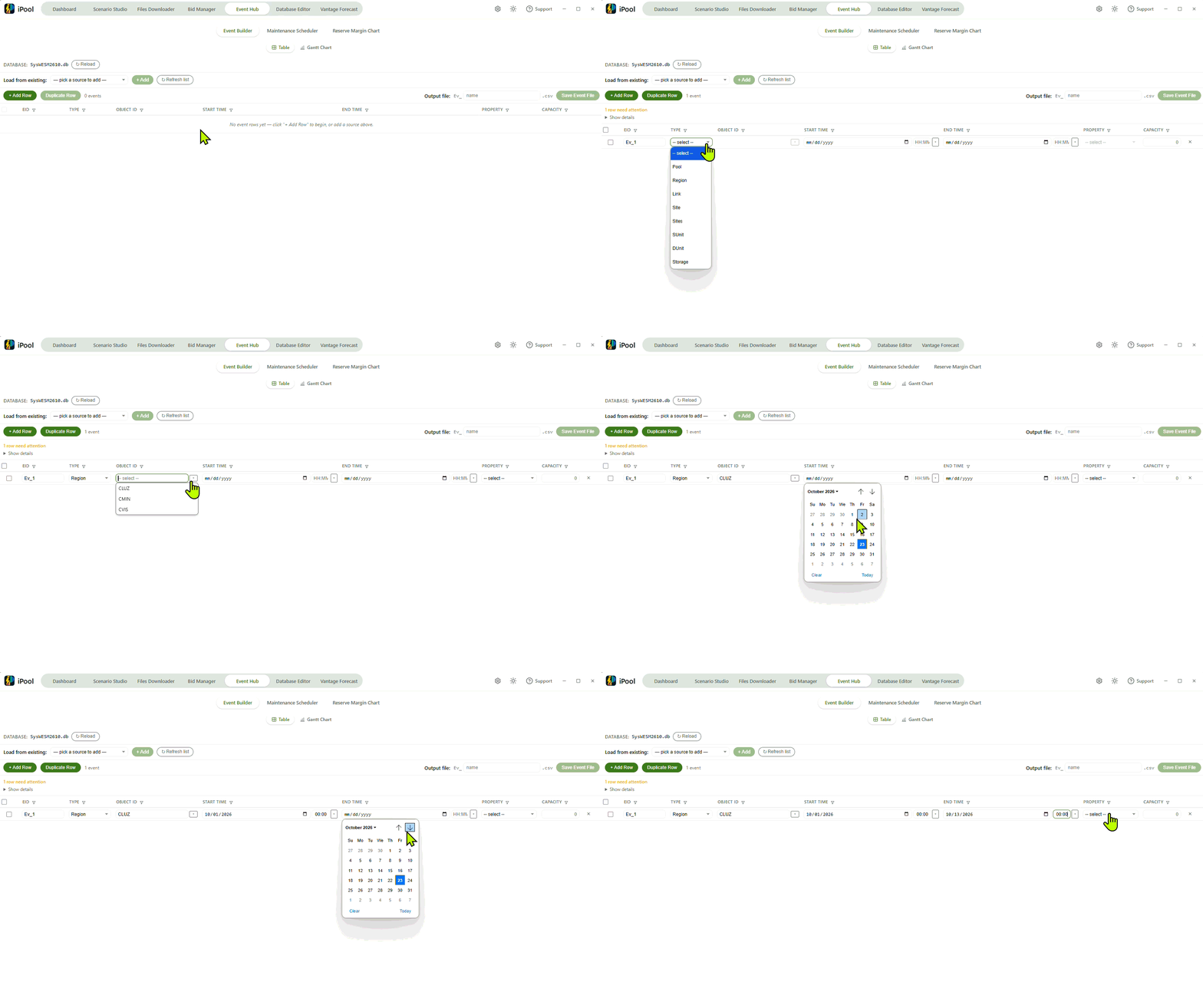
Type a base name into the Output file input (placeholder name)
and press Save Event File. The editor writes Ev_<name>.csv into
the working environment's event directory (DirEvt).
- When one or more rows fail validation, a blocking-summary strip
appears between the toolbar and the table. It reads
{N} row(s) need attentionand carries a Show details disclosure that lists per-row reasons inRow {N}: {reason}; {reason}form. Save Event File stays disabled until every row is valid. - If a file with the composed name already exists in DirEvt, an
overwrite-confirmation banner appears asking
**{filename}** already exists in DirEvt. Overwrite this event file?, with a red Overwrite button and a Cancel button.
Parse warnings raised while loading a source and other cross-cutting messages surface through the Suite's shared notification pop-up rather than a dedicated Event Builder panel.